Pages

Showing posts with label TUTORIALS. Show all posts

Wednesday, January 20, 2016

TECNO P3 REVIEW PLUS HOW TO FLASH STOCK ROM FREE

BatteryCameraDataMemoryBody
Capacity : 1400 mAh Li-Ion batteryStandby time : Up to 210hrsMusic / Games play : up to 5.3hrsTalk time : Up to 4hrsCamera Type : Dual CameraPixel :Main =3.0. Front = 0.3MPFlash Light : Yes Resolution : up to 2048×15364g :No3g : Yes2g : Yeswi-fi : YesInternal: 512 MBExpandable : up to 32gbRam : 512 MBC.P.U. :800 MHz dual-coreDimension :115.8*62*11.7mmColor: White, Black,& Yellow.size: 3.5 inches
In a glance you can round up tecno p3 smartphone as a low end  android phone that comes with basic android  features  such as 2G/3G ,  WIFI ,  google Play store,  Facebook ,  opera mini ,  gmail ,  google maps ,  Dual SIM, Dual Standby, touch light,  calculator , world-map, calendar and memo .

You can also root the tecno p3 android smartphone following the guides provided in the geeks forum link above, you can also add basic customization,  live wallpaper and games using only your opera mini browser.

If data consumption becomes too high as it is with almost all android smartphone theguides here will help you control what and when data should be used. Installing droid wall for rooted devices can also alienate this  .

The inbuilt function like the device wireless and usb tethering makes it very easy  for you to connect your computer and wi-fi enabled devices to the internet on the go Using Only your tecno p3 phone.

Concluding Lines : This smartphone have got a sleek body and can be termed an upgrade on their previous tecno n3 phone. The overall rating for  this smartphone should be around 3.5/5  measuring it with other low end android smart phones around  today .


Monday, January 19, 2015

HOW TO FLASH ROM OR APP ON ANY ANDROID FROM RECOVERY


Instaling A ROM Or App From Zip File To Android Device From Recovery


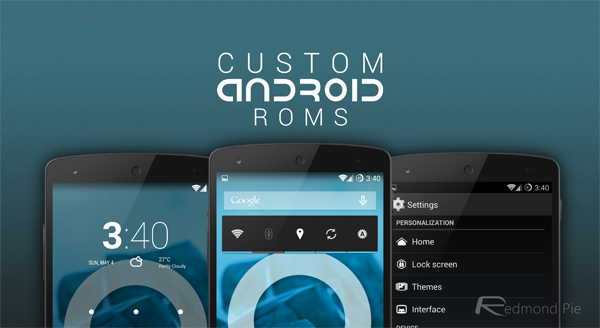
We have been covering a lot of Android ROMs and applications here at AddictiveTips and the installation procedure of most of those ROMs is the same. That’s why we decided to write a dedicated guide on how to flash any ROM or app from a zip file to your Android device using recovery. In this guide, we will be covering the entire flashing procedure, along with links to resources for rooting your device and making and restoring backups.
Please note that the terms ‘installing’ and ‘flashing’ can be used interchangeably here and will mean the same thing.
AndroidOfficial ROM updates from device manufacturers or carriers are released in conveniently packaged installation files that you can run on your computer while your Android device is connected to it, and they automatically take care of updating your phone’s system. Similarly, most applications are available directly in the Android Market for easy installation, or come packaged as convenient ‘.apk’ files that you can just run on your Android phone to install. The case is not the same with most custom ROMs and several custom applications, which come in .zip files rather than PC installers or .apk files.
The idea of installing a customized operating system to their smartphone can be quite intimidating for inexperienced users. Though once they get used to it, some of them end up trying out different ROMs for their devices several times a day. While we don’t exactly recommend that you flash every new ROM that is made available for your Android phone, we are here to help you get over the fear of flashing a ROM that enhances the capabilities of your device so that you can use it to its fullest potential.
Here is a quick look at what we will be covering in this guide. Feel free to skip to the real deal if you already meet the prerequisites.
There are certain steps that you might not require, and we shall be mentioning them in each section.
Before We Begin: Battery Check

Before you proceed with any of the following steps, make sure your phone’s battery level is not too low. It is recommended to have it at 50% or more. Do NOT take this lightly. If your phone’s battery runs out while you are attempting to flash a custom ROM, there is a significant chance of your phone getting bricked and becoming unusable PERMANENTLY.
Before We Begin: Unlocking the Bootloader (Stock Android Devices Only)
Note: This step applies only to Android devices with stock version of Android installed. At the moment, Google Nexus One and Nexus S are the only two such devices available. You may skip this step if you are using any other Android device.
Users of stock Android devices such as the Google Nexus One or Nexus S also need to unlock its bootloader before they can proceed. To do this, simply follow this guide on what is the bootloader and how to unlock it for stock Android phones. Once you have done this, you may proceed to the next step.


Before We Begin: Rooting


Note: You may skip this step if your device is already rooted, or if you already know how to root it.
Before you can install a custom ROM to your device, your phone needs to be rooted.  Rooting is basically administrator or root level access required to perform administrative tasks on your Android device. To root your phone, you can refer to this detailed guide on how to root an Android device. Once you are done with the rooting process, you may proceed to the next step.
Before We Proceed: Installing A Custom Recovery

Note: You may skip this step if you already have a custom recovery installed on your device.
Rooting grants you the necessary access level to execute administrative tasks on your Android device but it is the recovery that provides the tools necessary to actually perform those tasks. While every Android device ships with a recovery, the stock recovery is quite limited in what it lets you do, and you need a custom recovery image to perform advanced operations on your device. We have covered this process in detail in this guide on how to install a custom recovery to a rooted Android device that you can follow. Once you have a custom recovery installed on your phone, you will be ready to proceed to the next step.
The Real Deal: Installing a Custom ROM to your Phone

Now that you have a custom recovery installed on your phone, you can perform all sorts of wonderful advanced operations on your device and this includes the ability to flash a ROM or application from a zip file. The procedure is pretty standard for most ROMs, though there are certain ROMs which require additional steps for their installation. Since those steps differ from ROM to ROM, we shall be mentioning those in our reviews and guides on those ROMs, and feature only the standard instructions here.
There are two paths to follow from here. You can either use ROM Manager to specify the actions you need performed in Recovery, and it will take care of everything for you, or you may manually reboot your phone into recovery to perform the steps yourself. We will cover both methods here. If you used the ROM Manager method to flash ClockworkMod recovery, you already have it installed. If you used some other method to flash the recovery, or flashed a recovery other than ClockworkMod, you might not have ROM Manager installed but you can get it for free by searching for it at the Android Market.

  • Using ROM Manager

  1. Download the ROM from the link given in the article featuring that ROM. It should be a zip file.
  2. Connect your phone to your computer via USB and mount its storage card.
  3. Copy the downloaded ROM to the storage card. It is a good idea to place it on the root of the storage card.
  4. Launch ROM Manager on your phone.
  5. Tap ‘Install ROM from SD Card’
  6. Scroll down and tap on the zip file for the ROM that you copied to your sd card in step 3. You will be presented with a dialog box titled ‘Install Queue’.
  7. In case you want to install another zip file immediately after this ROM, tap ‘Add zip’ and select the next zip file that you want flashed. Skip this step if the ROM is all you want to flash for now.
  8. Tap ‘OK’. You will now see a dialog titled ‘ROM Pre-Installation’, with options to backup the existing ROM and wipe data and cache.
  9. ALWAYS check ‘Backup Existing ROM’ UNLESS you can afford to lose everything that’s on your phone at the moment.
  10. ALWAYS check ‘Wipe Data and Cache’, UNLESS the ROM you are attempting to flash is an updated version of the same ROM that you are currently using, and is compatible with the previous installation’s data. It is usually mentioned with the update whether you can install it over a previous version without wiping its data or not.
  11. Tap ‘OK’ and confirm any prompt that you get. Your device will now reboot into recovery and the selected ROM will be automatically installed. The new ROM will be booted once the installation is complete, though you might be prompted to confirm the reboot.

  • Manually

  1. Download the ROM from the link given in the article featuring that ROM. It should be a zip file.
  2. Connect your phone to your computer via USB and mount its storage card.
  3. Copy the downloaded ROM to the root of the storage card.
  4. Power your phone off and reboot it into recovery. This will involve using a combination of your device’s hardware keys. In case you don’t know how to do this, you can follow this guide on how to boot your phone into recovery. Once in recovery, you can navigate its menu using the volume up and volume down hardware keys or your phone’s trackball / optical track pad if it comes equipped with one.
  5. Use the ‘backup and restore’ feature of recovery to backup your existing ROM installation, software and data. This step is known as performing a nandroid backup. For more information on how to make and restore backups, see this guide on how to perform and restore a nandroid backup. ALWAYS perform a backup before flashing a custom ROM, UNLESS you can afford to lose everything that’s on your phone at the moment. Note: ALWAYS choose to perform the following steps 6, 7 and 8 UNLESS the ROM you are attempting to flash is an updated version of the same ROM that you are currently using, and is compatible with the current installation’s data. It is usually mentioned with the update whether you can install it over a previous version without wiping its data or not.
  6. Get back to the main recovery menu and use the option ‘wipe data/factory reset’. You will be prompted to confirm this action. Select “Yes – Delete all user data”.
  7. From the main recovery menu, select ‘wipe cache partition’. You will be prompted to confirm this action. Select ‘Yes – Wipe Cache’.
  8. From the main recovery menu, enter the ‘advanced’ menu. From this menu, select ‘Wipe Dalvik Cache’. You will be prompted to confirm this action. Select ‘Yes – Wipe Dalvik Cache’.
  9. Go back to the main recovery menu by pressing the back button and select the ‘Install zip from SD card’ option.
  10. Select ‘choose zip from sdcard’ to get a list of the files and folders on your SD card. Scroll to the ROM’s file that you copied there in step 3, and select it. You will be prompted to confirm this action. Select ‘Yes – Install file_name.zip’ where file_name.zip is the name of the zip file that you are trying to install.
  11. Wait patiently while the ROM is flashed to your phone via recovery.
  12. Once the installation is complete, head back to the main recovery menu if you aren’t there, and select ‘reboot system now’. Your phone will now boot into the newly installed ROM.
The Real Deal: Installing an App From a Zip File to your Phone
While most apps for Android devices are available at the app store for direct download and installation or as .apk files for direct installation, there are certain apps which are only available as zip files installable from recovery. Their installation procedure is the same as installing a custom ROM that we just featured above. However, there are a few minute differences.

  • When installing an app from a zip file, you do NOT need to perform the ‘wipe data/factory reset’ step so NEVER do that unless you know what you are doing, have a complete backup and want to start using your ROM as a fresh installation with the new app added.
  • You might or might not need to wipe the cache and the dalvik cache for installing apps from zip file. This varies from app to app and the developers of such apps as well as many reviewers including us mention when featuring an app whether it requires a cache and dalvik cache wipe or not. However, it never hurts to wipe these caches anyway, and it does not effect the data on your device or its storage card.
There you go, this concludes our guide on how to flash a ROM or app from a zip file to your Android device using a custom recovery. To try out the skills that you just learned, search our site for custom ROMs for your phone and start flashing, always remembering to take backups first!

Saturday, January 17, 2015

ALL ANDROID SHORTCODES THAT EXIST

Hello world, Its been all over 6 months now but dont worry, I have some good news for ya'll. I have been collecting a comprehensive supply of android short hack codes and I have exhausted the list as of now. I would love to share it with all of you fans and I am sure it will be helping someone out there to do something amazing or help someone. 
Otherwise I know you will have some kindah use for it, So here goes


*.*#*#778O#*#* = Factory Data Reset
*.*#*#I472365#*#* = Starts a Quick GPS Test
*.*#*#0673#*#* OR *#*#0289#*#* = Starts Audio Test
*.*#*#2664#*#* = Starts Touch Screen Test
*.#’#273283*255*663282*#*#* = Backup Media Files
*.*#*#0283#*#* = Starts Packet LoopbackTest
*.*2767*3855# = Reinstalls The Phones Firmware & Format Your Phone
*.*#*#232339#*#* OR *#*#526#*#* = Starts Wireless LAN Test
*.*#*# 1575#*#* = Starts Different GPS Tests
*.*#*#4636#*#*‘ = Shows Complete Information About Your Phone
*.*#*#2663#*#* = Shows Touch Screen Version
*.*#*#232337#*# = Displays Bluetooth Device Address
*.*#*#4986*2650468#*#* = Shows PDA, Phone Hardware, RF& Call Date
*.*#*#44336#*#* = Displays Build Time
*.*#06# = Displays IMEI Number
*.*#*#8255#*#* = Google Talk Service Monitoring
*.*#*#I II I#*#* | *‘#*#2222#*#* = Shows FTA Software Version & FTA Hardware Version
*.*#*#3264#*#* = Shows ROMVersion
*.*#*#23233I#‘*#* = Starts Bluetooth Test
*.*#*# 1234#’#’ = Shows PDA & Phone Firmware Information
*.*#*#0*#*#*= Starts LCD Display Test
*.*#*#0842#*#* Starts Vibration & Backlight Test
*.*#*#0588#*#* = Shows Proximity Sensor Test
*.*#*#232338#*#* = Shows Wi-Fi Mac Address
*.*#*#7262626#*#*= Shows Field Test
*.*#*#34971539#*#* = Shows Camera Update
*.*#*#19732840#*#* = Enables Test Mode
*.*#06# – Shows IMEI number
*.*#0*# – Shows Service Menu (Galaxy S III + )
*.*#*#4636#*#* – Shows Phone Information,Usage Statistics & Battery Information
*.*#*#34971539#*#* – Shows Detailed Camera Information
*.*#*#273282*255*663282*#*#* – Immediate Backup of AllMedia Files
*.*#*#197328640#*#* – EnablesTest Mode For Service
*.*#*#232339#*#* – Wireless LAN Tests
*.*#*#0842#*#* – Backlight & Vibration Test
*.*#*#2664#*#* – Touch Screen Test
*.*#*#1111#*#* – FTA Software Version (if 1111 does not work try 1234)*.*#12580*369# – Software &Hardware Information*.*#9090# – Diagnostic Configuration
*.*#872564# – USB Logging Control
*.*#9900# – System Dump Mode
*.*#301279# – HSDPA/HSUPA Control Menu
*.*#7465625# – ViewsPhone Lock Status
*.*#*#7780#*#* – Resets The Data Partition To Factory State
*.*2767*3855# – FormatsDevice to FactoryState (will delete everything on phone)
*.##7764726 – Hidden Service Menu (forsome Motorola Droid series)*.*#*#7594#*#* – EnablesDirect PoweringDown of Device (once this code is entered)
*.*#*#273283*255*663282*#*#* –Quick Backup of All The Media Files On Your Android Device
*.*#*#232338#*#* – Shows Wi-Fi MAC Address
*.*#*#1472365#*#* – Performs a Quick GPS Test
*.*#*#1575#*#* – For a More Advanced GPS Test
*.*#*#0283#*#* – Performs a Packet Loopback Test
*.*#*#0*#*#* – Runs a LCD Display Test
*.*#*#0289#*#* – Runsan Audio Test
*.*#*#2663#*#* – ShowsDevice’s Touch Screen Version
*.*#*#0588#*#* – Performs a Proximity Sensor Test
*.*#*#3264#*#* – Shows RAM Version
*.*#*#232331#*#* – Runs Bluetooth Test
*.*#*#232337#*# – Shows device’s Bluetooth Address
*.*#*#7262626#*#* – Performs a Field Test
*.*#*#8255#*#* – Monitors Google Talk Service
*.*#*#4986*2650468#*#* – Shows Phone,Hardware, PDA, RF Call Date & Firmware Information
*.*#*#1234#*#* – Shows PDA & Phone Firmware Information
*.*#*#2222#*#* – Shows FTA Hardware Version
*.*#*#44336#*#* – Shows Build Time&Change List Number
*.*#*#8351#*#* – Enables Voice Dialing Log Mode
*.*#*#8350#*#* – Disables Voice Dialing Log Mode
*.##778 (+call) – Shows EPST Menu
*.*#*#7594#*#* – EnablesDirect PoweringDown of device once this code is entered
*.*#*#232338#*#* – Shows Wi-Fi MAC Address

Specific Codes for HTC devices:-


*.*#*#3424#*#* – Runs HTC Function TestProgram
*.##786# – Reverse Logistics Support
*.##3282# – Shows EPST Menu
*.##3424# – RunsDiagnostic Mode
*.*#*#8255#*#* – Launches Google Talk Service Monitor
*.##33284# – PerformsField Test
*.##8626337# – Runs VOCODER
*.*#*#4636#*#* – Shows HTC 

Tuesday, October 7, 2014

HOW TO REMOVE OR RESET ALL WINDOWS PASSWORD

HOW TO REMOVE OR RESET ALL WINDOWS PASSWORDS YOU ASK?? 

Well many of us if not all of us have at one time or another had to face with the really frustrating option of either loosing the admin password or just being on a cmputer where the admin has locked everything with a password and yes that really sucks. 


but now come to think of it if we knew where windows stores its passwords then it would be easy to bypass the password request for loging in to admin whether on a personal computer or on a school,work etc. computer. good thing is we know and so a very genius company called HIREN  CAME UP WITH A BOOTABLE CD that can help you do just that...delete the password file and leave the admin open or iven change it if its on your own computer. i will guide you on a step by step course of how we do that.
you might need
1. RUFUS BOOTABLE FLASH DRIVE MAKER FROM HERE


you definitely need:
1. HIRENS BOOT CD[IMAGE FROM HERE]


Use the rufus software to make a bootable flash drive of the  hirens image if you will not be using it on burned iso disk
Tested on: NT 3.51, NT 4 (all versions and SPs), Windows 2000 (all versions & SPs), Windows XP (all versions, also SP2 and SP3), Windows Server 2003 (all SPs), Windows Vista 32 and 64 bit (SP1 also), Window 7 (all variants). Some also say that it works on Windows Server 2008 too.
If used on users that have EFS encrypted files, and the system is XP or Vista, all encrypted files for that user will be UNREADABLE! and cannot be recovered unless you remember the old password again. If you don't know if you have encrypted files or not, you most likely don't have them (except maybe on corporate systems).

Boot your computer with Hiren's BootCD and follow the steps below for resetting your password:

1. Enter "Offline NT/2000/XP/Vista/7 Password Changer"

With Up & Down keys select Offline 'NT/2000/XP/Vista/7 Password Changer' and press Enter.

2. Wait for "Offline NT Password & Registry Editor" to Load

On the screen below, you'll see is several lines of text that quickly run down the screen. You don't need to do anything here. Wait for "Offline NT Password & Registry Editor" to load.


1. Select "NT/2000/XP/Vista/7 Password Changer"


2. Linux files are loading...

3. Choose the Correct Hard Drive Partition

This step in the Offline NT Password & Registry Editor process is to select the partition that contains the Windows installation that you want to delete a password from.
Many computers have a single operating system installed on a single partition on a single hard drive, making this a very easy choice.
If that's the case for you, just press ENTER to accept the default partition. Otherwise, type the number corresponding to the correct partition from the Candidate Windows partitions found list and then press ENTER.

If more than one partition is listed and you're not sure which one to pick, chances are the larger partition is the one with Windows installed.

Every Windows 7 PC will have more than one partition listed.

4. Confirm the Windows Registry Path

Offline NT Password & Registry Editor now needs to know the exact location of the Windows Registry. Except in the rarest of occasions, the default location will be the correct one.
Just Press ENTER to accept the default Windows Registry path without writing anything else.


3. Choose the Correct Hard Drive Partition


4. Confirm the Windows Registry Path

5. Choose the Password Reset Option

Offline NT Password & Registry Editor is now asking which part of the registry it should load.
Press ENTER to accept the default choice of Password reset.

The Offline NT Password & Registry Editor tool can perform various functions aside from resetting passwords but since that's the focus of this particular walkthrough, that's all we'll discuss.

6. Choose the Edit User Data and Passwords Option

Now that the registry is loaded and available to the program, Offline NT Password & Registry Editor needs to know exactly what you want to do.
Press ENTER to accept the default choice of Edit user data and passwords.
This will load the necessary options for the actual password reset.


5. Choose the Password Reset Option


6. Choose the Edit User Data and Passwords Option

7. Enter the Username to Edit

Offline NT Password & Registry Editor now needs to know which user's password you'd like to delete (erase, clear, blank, remove, call it what you like).
A default user is listed between the brackets at the prompt. In the above example, you can see that it's the Administrator user.
If the default user is the user you'd like to remove the password from, simply press ENTER. Otherwise, enter the username and then press ENTER.

8. Type 1 to Clear (blank) user password and then press ENTER

At the bottom of the screen you'll see the User Edit Menu with several options to choose from.
Type 1 for Clear (blank) user password and then press ENTER.

Offline NT Password & Registry Editor shows some interesting information about the username you entered in the last step - the full name, what groups the user belongs to, how many failed login attempts have taken place, how many total logins have been completed, and more.

If you see a check in the "Passwd not req." box, this means that a password is not a requirement for this particular user. It does not mean that a password is not required to access the account in Windows. In other words, it's saying that it is possible to erase this user's password.


7. Enter the Username to Edit


8. Type 1 to Clear (blank) user password and then press ENTER

9. Type ! to quit the User Edit Tool

Assuming there weren't any problems, you should see a Password cleared! message after entering 1 in the previous step.
Type ! to quit editing user and then press ENTER.

You must confirm these changes in a later step before they are actually complete. If you quit Offline NT Password & Registry Editor now then the password reset will not take place!

10. Type q to Quit Offline NT Password & Registry Editor

Enter q and then press ENTER to quit the Offline NT Password & Registry Editor registry editing tool.
Important: You're still not done! You need to confirm your password reset change in the next step before it will take effect.


9. Type ! to quit the User Edit Tool


10. Type q to Quit Offline NT Password & Registry Editor

11. Type y and then press ENTER to confirm Password Reset Changes

At the Step FOUR: Writing back changes menu, Offline NT Password & Registry Editor asks if you want to write file(s) back.
Type y and then press ENTER.
You should see an EDIT COMPLETE message appear on screen. If you do, it means that Offline NT Password & Registry Editor has written the password changes to your computer!

12. Confirm That You're Finished Using Offline NT Password & Registry Editor

Offline NT Password & Registry Editor gives you an option here to rerun the program. If you've been following along with this guide and everything seems to have worked properly then there's little reason to repeat anything.
Press ENTER to confirm the default option of not rerunning the password reset.


11. Type y and then press ENTER to confirm Password Reset Changes


12. Press ENTER to Confirm That You're Finished Using Offline NT Password & Registry Editor

13. Remove Hiren's BootCD and Restart the Computer

That's it! You've just completed the entire Offline NT Password & Registry Editor password removal process.


13. Remove Hiren's BootCD and Restart the Computer


Note: If you receive a "job control turned off" or a "can't access tty" error, don't worry. As long as the EDIT COMPLETE confirmation message was posted to the screen after you confirmed the password reset changes then your password was successfully reset. You should still be able to see the confirmation on the screen at this point.
Remove Hiren's BootCD from your CD/DVD drive and then manually reset your computer.
In the next step, you'll finally get to logon to Windows without entering a password!
Now that your password has been removed using Offline NT Password & Registry Editor, no password is required to log on to Windows.
If you are the only user on your computer, Windows will boot all the way to the desktop on the next reboot and will skip the logon screen altogether.
If you're on a multi-user computer (as many families are), the logon screen will still appear after starting Windows but when you click on the user that had the password removed, you will not be prompted for a password and will instead enter Windows automatically.
Having a secure password is important so please don't continue to use Windows without one. As soon as you've gained access to your computer again, configure a new password - one you can remember a little easier!

Tuesday, September 30, 2014

HOW TO HACK WIFI PASSWORDS LIKE A PRO-THE ONLY REAL WAY


How to Crack Wi-Fi Passwords—For Beginners!


Yeah yeah people keep asking this question over and over and am tired of being asked the same myself... if you are wondering what am talking about then you should read the tittle of this post.so anyway I wanted to lay it to rest once and for all, there are no "tools" that can single handedly hack, crack Wi-Fi passwords within a few minutes like these tools you find on Google searches seem to insinuate. all of those crap tools are genius works of hackers like me who have come to know that people are so ignorant that they are willing to destroy their own devices[computers and smartphones], just to feel like hackers. these people probably don’t want to know the geeky stuff that happens during hacking and are therefore very satisfied if you make a silly program that pretends to be really working hard to crack your victims password while all its really doing is installing Trojans in the background that will allow now the real hacker to access your computer and probably gain a lot of confidential info from you.

Anyway all I mean to say is that there is only one way to crack Wi-Fi passwords and it’s not the least bit easy so here is a detailed tutorial on all the procedure you will need.


An internet connection has become a basic necessity in our modern lives. Wireless hotspots (commonly known as Wi-Fi) can be found everywhere!


If you have a PC with a wireless network card, then you must have seen many networks around you. Sadly most of these networks are secured with a network security key.


Have you ever wanted to use one of these networks? You must have desperately wanted to check your mail when you shifted to your new house. The hardest time in your life is when your internet connection is down.


Cracking those Wi-Fi passwords is your answer to temporary internet access. This is a comprehensive guide which will teach even complete beginners how to crack WEP encrypted networks, easily.


If it's WPA2-PSK passwords you need to crack, you can use aircrack-ng or coWPAtty.
Table of Contents


1. How are wireless networks secured?


2. What you'll need


3. Setting up CommView for Wi-Fi


4. Selecting the target network and capturing packets


5. Waiting...


6. Now the interesting part... CRACKING!


7. Are you a visual learner?
Step 1: How Are Wireless Networks Secured?


In a secured wireless connection, internet data is sent in the form of encrypted packets. These packets are encrypted with network security keys. If you somehow manage to get hold of the key for a particular wireless network you virtually have access to the wireless internet connection.


Broadly speaking, there are two main types of encryptions used.
WEP (Wired Equivalent Privacy)


This is the most basic form of encryption. This has become an unsafe option as it is vulnerable and can be cracked with relative ease. Although this is the case many people still use this encryption.
WPA (Wi-Fi Protected Access)


This is the more secure alternative. Efficient cracking of the passphrase of such a network requires the use of a wordlist with the common passwords. In other words you use the old-fashioned method of trial and error to gain access. Variations include WPA-2 which is the most secure encryption alternative till date. Although this can also be cracked using a wordlist if the password is common, this is virtually uncrackable with a strong password. That is, unless the WPA PIN is still enabled (as is the default on many routers).


Hacking WEP passwords is relatively fast, so we'll focus on how to crack them for this guide. If the only networks around you use WPA passwords, you'll want to follow this guide on how to crack WPA Wi-Fi passwordsinstead.
Step 2: What You'll Need


· A compatible wireless adapter:


This is by far the biggest requirement.The wireless card of your computer has to be compatible with the software CommVIew. This ensures that the wireless card can go into monitor mode which is essential for capturing packets. Click here to check if your wireless card is compatible


· CommView for Wi-Fi :


This software will be used to capture the packets from the desired network adapter. Click here to download the software from their website.


· Aircrack-ng GUI:


After capturing the packets this software does the actual cracking. Click hereto download the software from their website.


· A little patience is vital!!
Step 3: Setting Up CommView for Wi-Fi


· Download the zip file of CommView for Wi-Fi from the website. Extract the file and run setup.exe to install CommView for Wi-Fi. When CommView opens for the first time it has a driver installation guide. Follow the prompts to install the driver for your wireless card.


· Run CommView for Wi-Fi.


· Click the play icon on the top left of the application window.


Start scanning for wireless networks.


CommView now starts scanning for wireless networks channel by channel. After a few minutes you will have a long list of wireless networks with their security type and signal. Now it is time to choose your target network.
Step 4: Selecting the Target Network and Capturing Packets


A few things to keep in mind before choosing the target wireless network:


· This tutorial is only for WEP encrypted networks, so make sure you select a network with WEP next to its name. If you need to crack a WPA encrypted network, follow this tutorial instead.


· Choose a network with the highest signal.


· Each network will have its details in the right column.


· Make sure the WEP network you are choosing has the lowest dB (decibel) value.


Once you have chosen your target network, select it and click Capture to start capturing packets from the desired channel.


Now you might notice that packets are being captured from all the networks in the particular channel. To capture packets only from the desired network follow the given steps.


· Right click the desired network and click on copy MAC Address.


· Switch to the Rules tab on the top.


· On the left hand side choose MAC Addresses.


· Enable MAC Address rules.


· For 'Action' select 'capture' and for 'Add record' select 'both'.


· Now paste the mac address copied earlier in the box below.


We need to capture only data packets for cracking. So, select D on the bar at the top of the window and deselect M (Management packets) and C (Control packets).


Now you have to save the packets so that they can be cracked later. To do this:


· Go to the logging tab on top and enable auto saving.


· Set Maximum Directory Size to 2000.


· Set Average Log File Size to 20.
Step 5: Waiting...


Now the boring part- WAITING!


NOTE: The amount of time taken to capture enough data packets depends on the signal and the networks usage. The minimum number of packets you should capture should be 100,000 for a decent signal.


After you think you have enough packets (at least 100,000 packets), you'll need to export them.


· Go to the log tab and click on concatenate logs.


· Select all the logs that have been saved.


· Do not close CommView for Wi-Fi.


· Now navigate to the folder where the concatenated logs have been saved.


· Open the log file.


· Select File- Export -Wire shark tcpdump format and choose any suitable destination.


· This will save the logs with a .cap extension to that location.
Step 6: Now the Interesting Part... CRACKING!


· Download Aircrack-ng and extract the zip file.


· Open the folder and navigate to 'bin'.


· Run Aircrack-ng GUI.


· Choose WEP.


· Open your .cap file that you had saved earlier.


· Click Launch.


· In the command prompt type in the index number of your target wireless network.


· Wait for a while. If everything goes fine, the wireless key will be shown.


You may also receive a request to try with more packets. In this case wait until more packets have been captured and repeat the steps to be performed after capturing packets.


DISCLAIMER: IT IS ILLEGAL TO ACCESS OTHER PEOPLES NETWORKS WITHOUT THEIR CONSENT. THIS IS FOR EDUCATIONAL PURPOSES ONLY.


Monday, September 29, 2014

HOW TO BOOST YOUR WI-FI SIGNAL TREMENDOUSLY

Boosting your Wi-Fi range with just a homemade parabolic reflector


  • To do this, all you need is an aluminum foil. You can finish it in less than 5 minutes and it will just cost you some cents.
  • First, you must tear a cut of aluminum foil in a rectangle shape.
  • After that, fold the sheet halfwise then fold each of the four sides for about 2 centimeter.
  • Next, begin forming a curve into the foil.
  • After that, you can now position the parabolic reflector behind the antenna of your wireless device, which should be pointed in the general direction of the wireless hub.
  • Then you will see that the signal strength will be truly maximized. For best results, you can also try doing second parabolic reflector then put it next to the antenna of your wireless router then you will notice that the signal will more increase and you would be able to download files faster.
  • When you fold each side of the foil this helps to straight a frame to add stability. And when you form a curve into the foil, this curve shape resembles the general shape of the parabola.
  •  

Adding strength to your Wi-Fi

The man in the video used the bottom of a box and covers it with a foil. He put two holes in the lower side where he will insert the antenna of the wireless router. He puts the Wireless router with a satellite-like box covered with foil up into he’s wall. What happens after what he has done is he’s Wi-Fi strength boost up. From 48 mbps, his signal gradually increases to 54 mbps.


How to maximize your Wi-Fi strength by just using old can

  • In doing this, you need an empty can, marker, and any tool you can use to cut the can.
  • First thing you must do, is to draw a line just below the opening of the can and continue it to the sides.
  • Next step is to cut the can along the line and remove the bottom.
  • Then you make a hole where you will insert your antenna below the can.
  • Next, you can paint the can or just cover it with foil or duct tape around the edges and on the exterior.
  • Lastly, Put the finished product above your wireless router; insert the antenna in the hole you’ve made.